Stepping into the virtual landscape can be a bit overwhelming at first, especially on a standalone VR headset like the Meta Quest 2. It is one of the best VR headsets on the market, but many users are unaware of some of its best features other thanVR gaming. So we have put together a list of some of the best Meta Quest 2 tips & tricks for beginners and veterans.
Most of the advanced features mentioned on this list were unavailable on theMeta Quest 2at launch. The company made sure to roll out many software updates that added these features one by one. Thanks to that, users can use the following tips and tricks to improve their Meta Quest 2 user experience.

Best Meta Quest 2 Tips & Tricks
The following tips and tricks can help you understand multiple advanced features of the Meta Quest 2/Pro. Try out each feature to make the most out of your VR headset.
1. Sideloading & App Lab
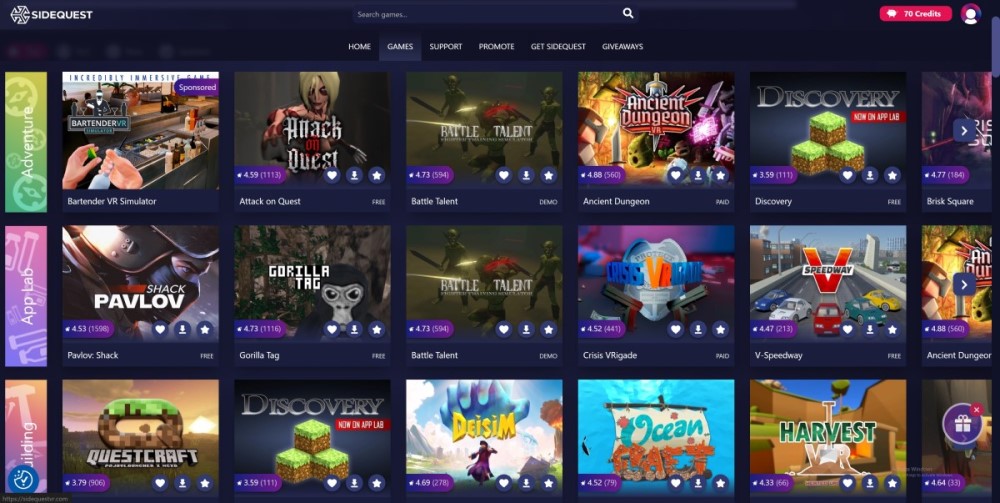
The Meta Quest 2 runs on an Android operating system. Due to this, it can sideload untestedVR gamesand apps from the App Lab or third-party sources. The App Lab has over 1,500 titles, while the official Meta Quest store only has 453 titles.
Users can download apps listed on the App Lab directly from the Meta Quest store. However, a developer account is needed to install apps through sideloading from third-party app sources.
2. How to enable developer mode on Meta Quest 2
Installing VR apps and games from third-party sources on the Quest 2 is really easy. Users can use theSideQuest app storeto download free VR games and experiment with developer settings. All they need to do is make aQuest developer accountto enable sideloading as an option.
After making the account, enable the developer mode on your headset by going toSettings>System>Developer, and then turn on theUSB Connection Dialogoption. Users can also do this on the Meta Quest Mobile App.

3. How to use Meta Quest 2 for wireless PC VR
Users can even enjoy PC VR games without being tethered to a cable. However, users will need to download theMeta Quest PC client. To enable this feature go toQuick Settings>Settings>System>Quest Link. After enabling the feature, users can also launch Air Link directly from the Quick Settings menu.
4. Mixed Reality Passthrough Shortcut
Playing games in VR is very immersive and can make you forget about the real world. However, there are many situations where users will need to quickly look at their surroundings to adjust their position or see if anyone else has entered the room.
Fortunately, users can check their surroundings with a quick double tap on either side of their headset. They can enable this feature by going toQuick Settings>Settings>Guardianand turning on Double Tap for Passthrough.
5. Free Game Trials
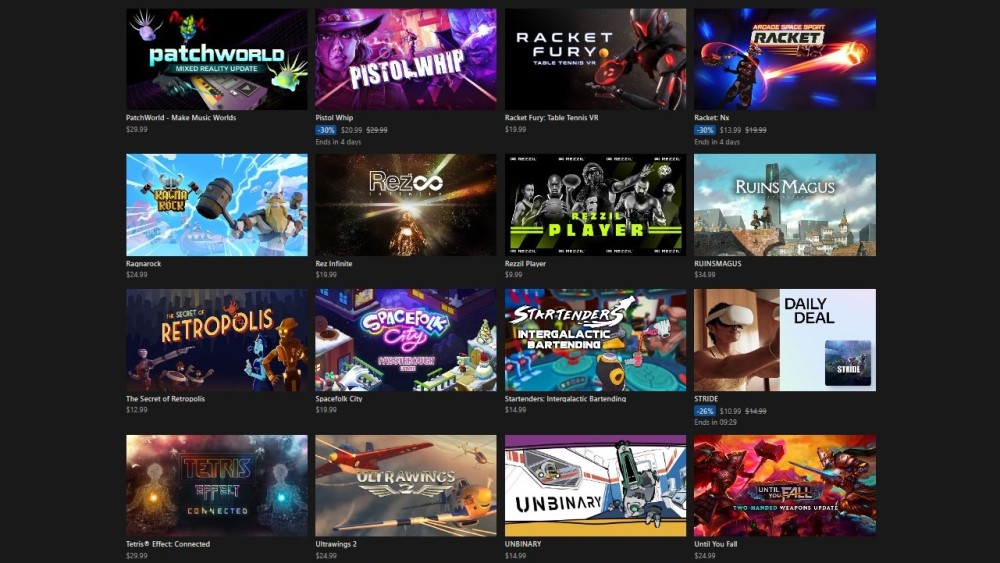
Have you ever bought a game only to be disappointed by it after playing it for a while? Fortunately, Meta Quest offers afree trial to play these VR gamesbefore buying them. Users can try out these games for 15, 30, or 60 minutes, depending on the VR app.
For now, only a few VR games support this category, but more are likely to join them. Other than that, there are also many free VR games that are available for all users. For more information, check out our list of thebest free games for Meta Quest 2/Pro.

6. How To Cast Meta Quest 2 To Your TV, Computer, Or Phone
The Quest 2 isn’t just a solo experience, as users can bring their friends along for the ride. Users can cast the Meta Quest 2 on a TV, smartphone, or computer. However, all devices must be on the same Wi-Fi network. Check out ourother articlefor an in-depth guide on how to use this feature.
Open the Meta Quest app and connect your headset. SelectCast>Startto cast it on your phone. Users can also go toThis Phone>Other Devicesto cast it to a TV. To cast the Meta Quest 2 on a computer, go tooculus.com/castingand log in using the same Facebook account. From your Meta Quest headset, selectCamera>Casting>Computer.
7. Get Mobile notifications on Meta Quest 2
There’s no need to put down your Meta Quest 2 every time you get a message on your phone. Users can sync their Meta Quest mobile app to their VR headset to get these notifications directly on the Quest 2.
To enable phone notifications on your Quest 2, open the Meta Quest app and connect your headset. Tap on your headset and go toHeadset Settings>Phone notifications. Enable the phone notification setting and give the necessary permissions to the Meta Quest app.
8. Automatically switch tohand tracking
Other than controllers, Meta Quest owners can also use hand tracking to navigate the Store or play some VR games. To enable this feature, go to Quick Settings > Settings > Movement Tracking.
We also recommend enabling the auto switch between hands and controllers and setting the sensitivity to high. This additional setting will allow users to put down their controllers and immediately switch to hand-tracking mode.
9. How to take screenshots & recordings on the Meta Quest 2
Like a PC, Meta Quest 2/Pro users can take screenshots and record gameplay. To take a screenshot, press and hold the Oculus button on your right controller, then press the trigger on either controller. Users can also change the video and image quality settings by going toQuick Settings>Settings>Experimentaland enabling advanced camera settings.
After enabling this setting, users will be redirected to the camera settings menu. New experimental options will now be available that will allow users to change the frame rate and aspect ratio for the images and videos. There are also features likeimage stabilizationandvideo compression qualityfor gameplay videos.
To record a video, go toCamera>Record Video>Start Recording. Users will also get the option to include mic audio. It should be noted that users can also take screenshots and recordings from shortcuts that appear on the game’s panel when they press theOculusbutton.
10. Sync media with the Meta Quest app
Users can also sync their media screenshots and recordings across the Meta Quest 2 and mobile devices. From your Meta Quest headset, go toQuick Settings>Settings>System>Cameraand enableSync Media to Meta Quest mobile app.
Best Meta Quest 2 Tips & Tricks [Bonus]
The Meta Quest 2 is a standalone VR headset with many hidden features. Here are additional tips and tricks for Meta Quest 2 that will improve your VR experience.
Let us know which Meta Quest 2 Tips & Tricks you liked the most in the comment section below.
