Short Bytes:Your Linux system saves the passwords of the WiFi networks connected in the past. This is pretty helpful in case you forget the password and you need to connect a new device to the internet. But, you may find the saved WiFi passwords in Linux by running few simple commands. This can also be done by clicking a few options in network settings.
The same happens in the case of an Android smartphone. So, if you are not the person who had initially set the WiFi password of the network, it’s very easy to forget the password at a later stage. It might seem impossible to you at the moment but it does happen in the real-life situations.
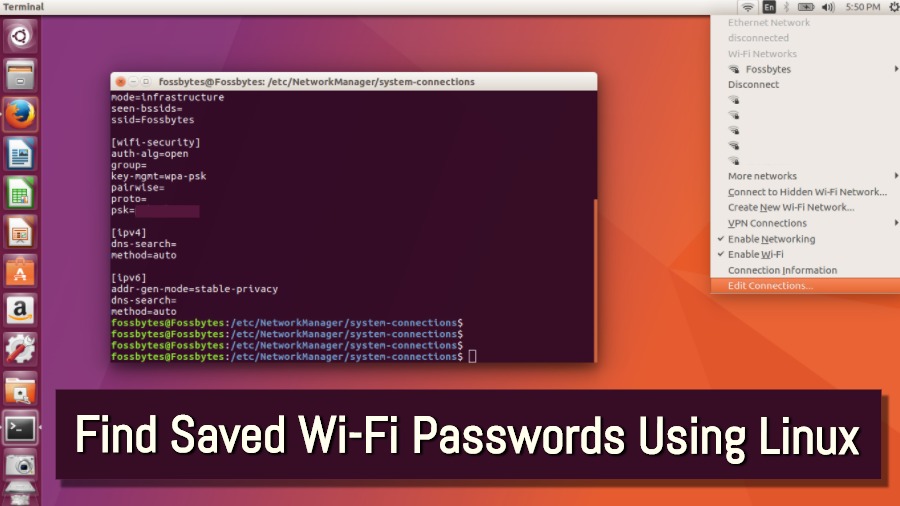
Note: In this article, I’ll be using Ubuntu Linux for showing you how to find saved passwords in Linux. However, it’s more like a general method and you can use it on Linux Mint, Elementary OS, etc.
In such case, we need some way to recover the saved WiFi password in Ubuntu Linux. In the past, we’ve already told you how to recover theWiFi password in Windows operating system. Please note that here I’m not mentioning the ways to “crack” the security using someWiFi hacking apps. Here, you’ll simply learn how to see your own password without any malicious intentions.

Recovering wireless password in Ubuntu Linux can be done both via terminal and GUI. So, to help you show WiFi passwords in Linux, let’s tell you about the methods one by one —
Finding WiFi password of current network in Linux
Get wireless password using simple commands in terminal
As this exercise involves running some simple commands, you need to open a new Terminal window.
Now run the following command in terminal to locate where the network connection details are stored:

With the ls command, list the all the saved networks on your Ubuntu machine:
Now with the help of cat command followed by the network name, you can see the saved details. Under the section, WiFi-Security, you can find the password which will be prefixed by “psk=”. Also, don’t forget to replaceFossbytesby your own network name:

Recover Linux Wireless Password Using Ubuntu Desktop (no commands)
First you need to click on theWiFi iconin the top right corner to reveal a drop-down menu. At the bottom of the menu,Edit Connectionsoption.
After clicking the network connections, you’ll see different options under Ethernet and Wi-Fi. You’ll see the saved network connections under the Wi-Fi option. Depending upon your requirement, you canclick on a WiFi networkto select it and press theEditbutton for further operations.
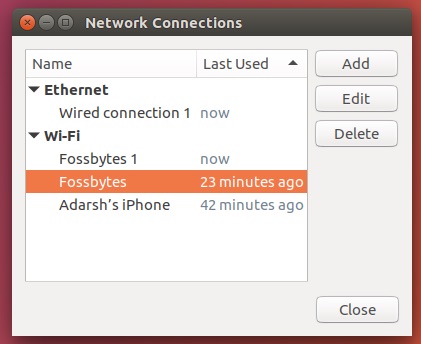
After you click the Edit option, a new window will appear with different tabs. There, you need to select theWi-Fi Securitytab. This will reveal the security and password associated with it. It’ll be hidden.
Now tick theShow Passwordoption to show the saved password of the network. If you’re not acquainted with the other options, don’t fiddle with them as they might end up messing with your wireless configuration.
Using any of the above-mentioned methods, you can find the saved WiFi passwords on Ubuntu Linux. Don’t forget to share your views while performing this action.
