Spotify is one of the most popular music streaming services in the industry, thanks to its amazing collection and tons ofintuitive features. One big reason behind this is its intuitive interface across all platforms, particularly its desktop UI that has always been favored by Spotify’s power users.
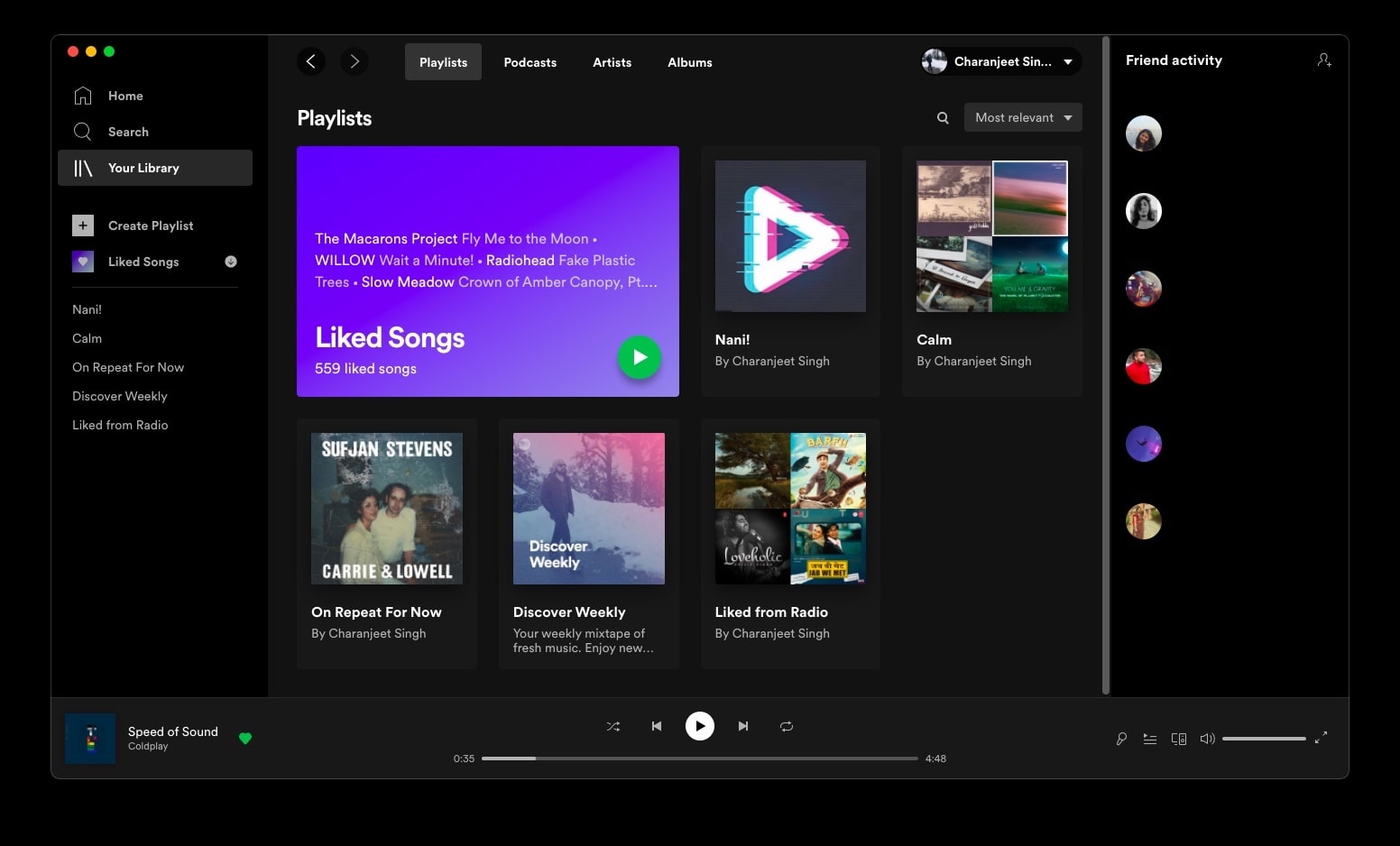
However, Spotify’s desktop UI overhaul thatarrived in Marchhas left many of its users in anguish. For some, the user interface is now clunky and no longer offers ease to reach for the options it once had.
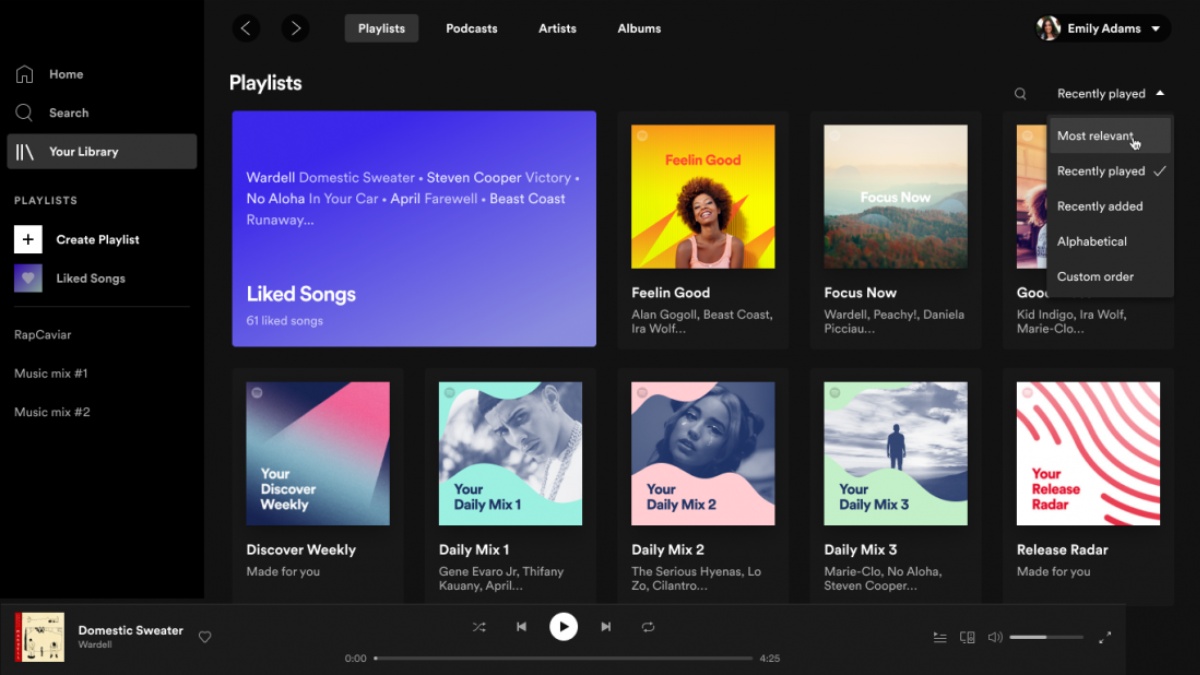
For instance, some are annoyed by the removal of the search bar at the top, while others are disappointed about the changes to the artist’s page.
If you are also annoyed by the new update to Spotify’s desktop app, there is a way to revert back to Spotify’s classic desktop theme.
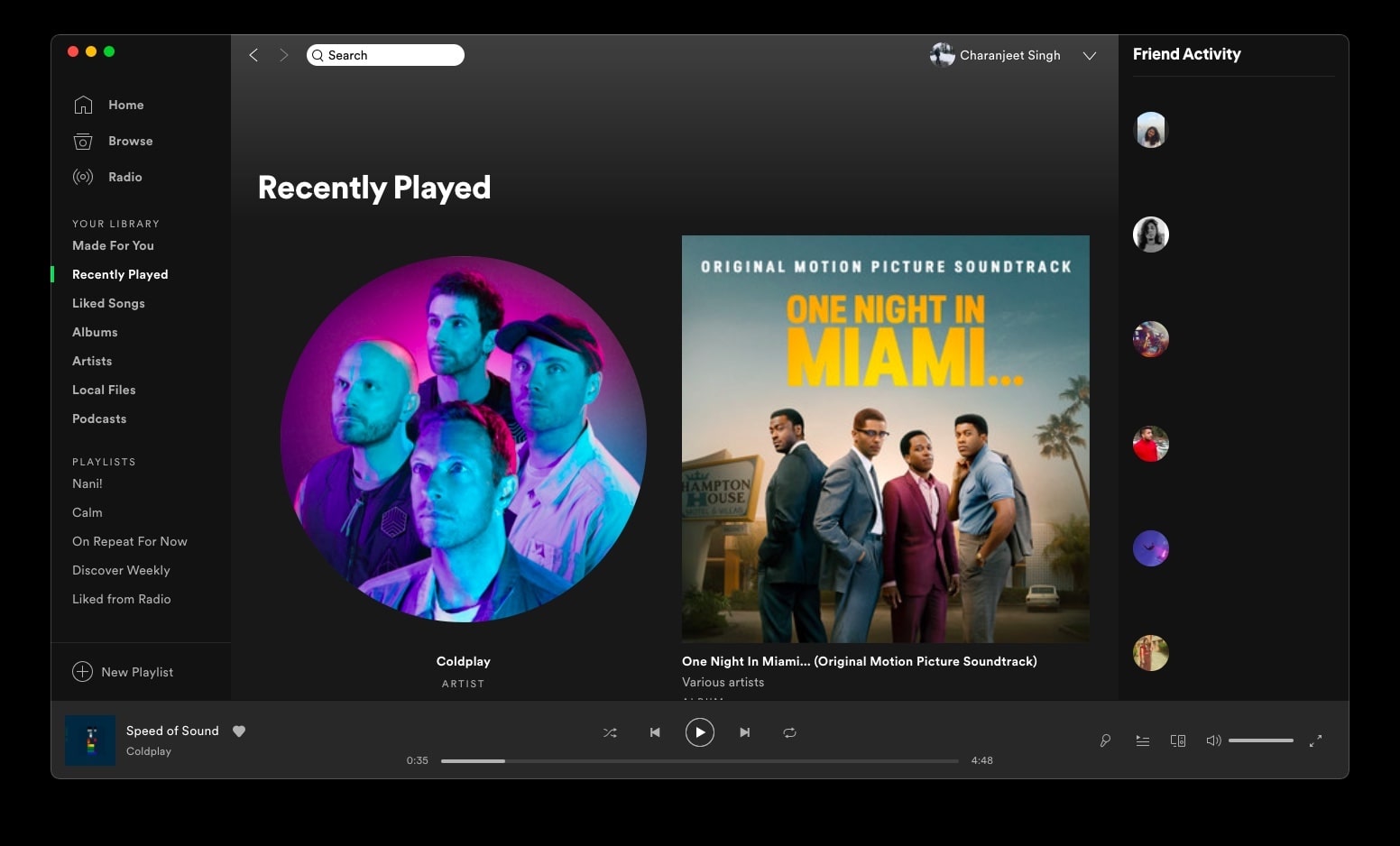
How to revert to Spotify’s desktop UI from before the update?
Get old UI on Mac
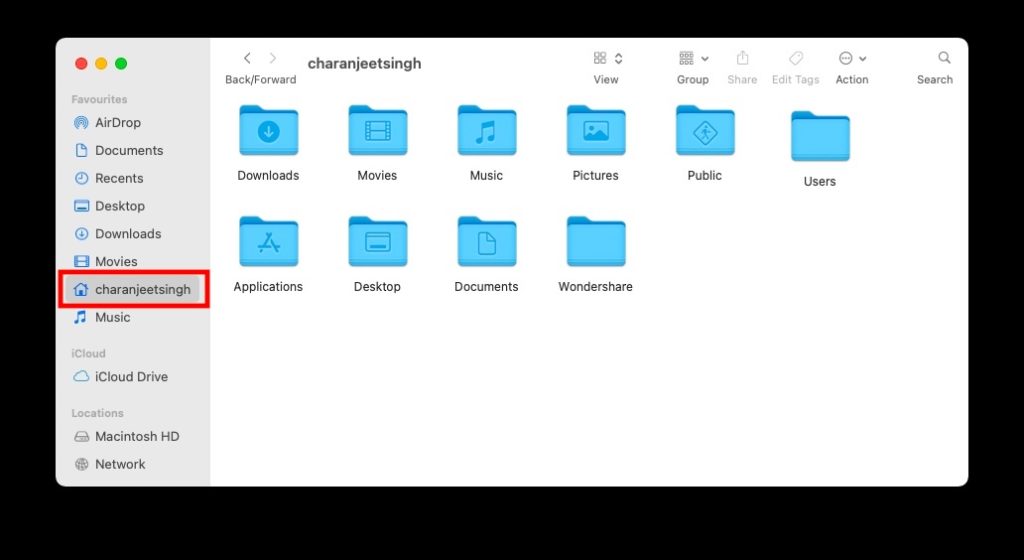
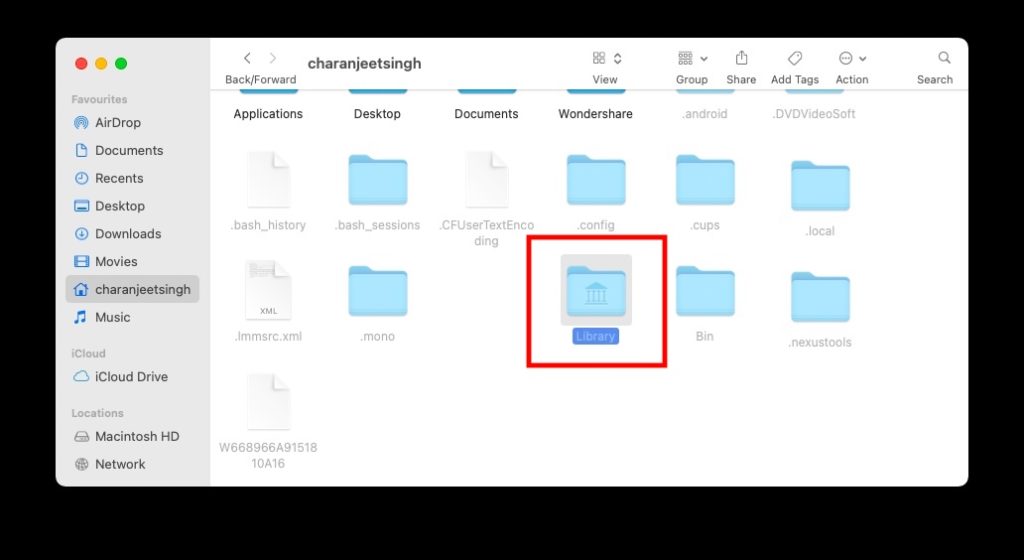
Open the Finder Window and click on your name folder in the Sidebar.
Press Press Command + Shift + . (period) on your Keyboard to see the hidden user library folder.
3. Now, go to Library > Application Support > Spotify.
Open the prefs text document and add the following line —ui.experience_override=”classic”
Restart the Spotify app
- You will see that the Spotify desktop UI has reverted back to the one that was prior to the update.
Get old UI on Windows
If you are running Spotify on Windows, here’s how to go back to the classic Desktop UI of Spotify —
- Go to the path —C:\Users[USERNAME]\AppData\Roaming\Spotify\prefsor$user\AppData\Local\Packages\Spotify\prefsif you are using the Spotify app from the MS Store.
- Add the following line —ui.experience_override=”classic”
Get old UI on Linux
- Similarly on Linux, go to home/$USER/.config/spotify/prefs or Go to~/snap/spotify/46/.config/spotify/prefsfor Linux (Snap)
If you want to update to Spotify’s new desktop interface, just open the prefs document and replaceui.experience_override=”classic”withui.experience_override=”xpui”
Were you able to switch back to Spotify’s classic desktop UI? Let us know in the comments down below.
