Just bought theiPhone 11? One of the cool things about having an iPhone is that you can easily screen record on your iPhone 11 without needing to download a third-party app. Once the video is recorded, you can edit the video in the Photos app and send it to your friends.
The option to screen record on the iPhone 11 will prove handy if you want to capture gameplay, create a tutorial video, record a Facebook video, etc.
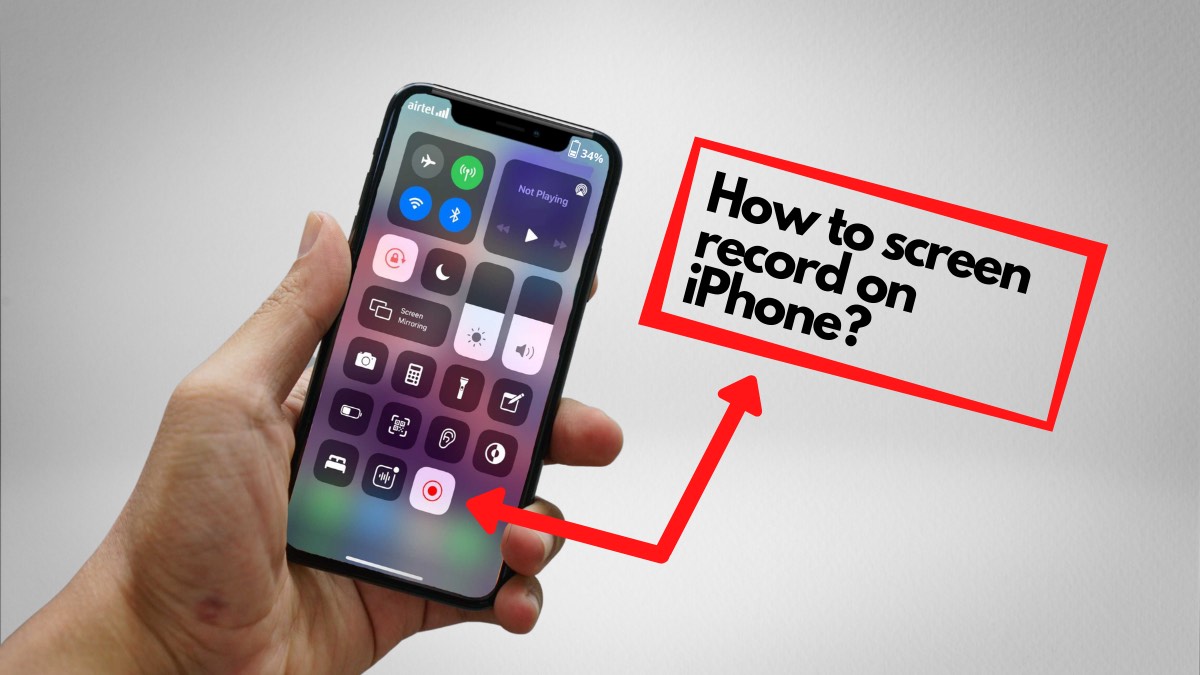
Whatever your reason may be, here’s how to get a screen recording done on your iPhone 11.
Also Read:How To Turn Off iPhone 11 (Three Ways)?
How to screen record on iPhone 11?
Go to iPhone Settings > Control Center > Scroll down and tap on the + icon next to the Screen Recording.
Swipe down from the top-right edge of the screen to go to the Control Center. Tap on the record button (Solid circle within a circular outline). The screen recording will begin after a 3-second countdown.

You can also stop the screen recording by going back to the Control Center and tapping on the now-blinking red record button.
Once you have stopped the screen recording, it can be viewed in the Photos app.

How to screen record on iPhone 11 with external audio?
If you want to make a tutorial video that should include your voice, use the below method to record screen on an iPhone 11. Before proceeding, make sure you have added the screen recording button to the Control Center.
You will now be able to get screen recordings done on your iPhone with external audio. If you want the iPhone to screen record only with internal sound, again long press on the record button in the Control Center and tap on the Microphone button to turn it off.
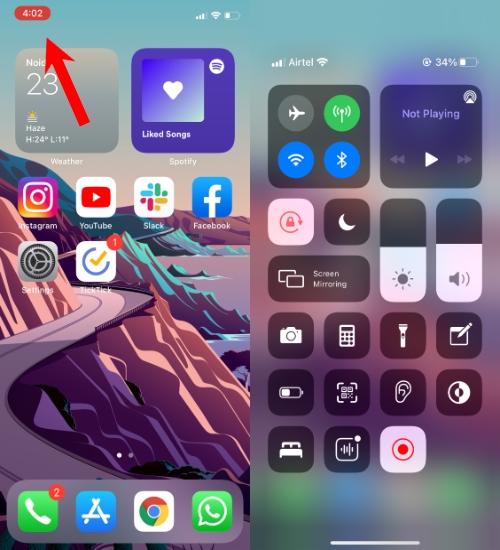
That’s all! You can use these methods to screen record on your iPhone. Note that some streaming services like Netflix don’t allow users to screen record. However, you can use it to record YouTube videos or videos played on a browser.
If you want both phone audio and ambient sounds in your screen recording, just make sure your iPhone is set to Ring mode and the media volume is turned to 100%. Also, the microphone is toggled on in the screen record settings.

If you only want your voice on the screen recording and no other sounds, just put the iPhone to silent mode and turn the media volume to zero.
There are two ways to do this — 1) Keep the phone on silent mode and the microphone button toggled off before recording. 2) Once the video is recorded, you’re able to remove the audio while editing the video in the Photos app.
