The long-awaited feature announced with Windows 11 is finally here. Microsoft released the first preview ofAndroid app supportfor Windows Insiders. Users can now set up and install Android apps on their Windows 11 PCs powered by Windows Subsystem for Android (WSA).
Users in the Beta channel of the Windows Insider Program can now download and run Android apps on their machines. This article is part of ourWindows 11 guideand will help you set up the Windows Subsystem for Android and get started with running Android apps.

Before knowing how to set up and run Android apps on Windows 11, there are some pre-requisites that your PC must have to get the Windows Subsystem for Android and Amazon Appstore up and running.
Pre-requisites
Note:By installing the Amazon Appstore, the Windows Subsystem for Android will also be installed along with it in the background. WSA is the core technology that powers Android apps.
Downloading the Amazon Appstore and WSA
Visit theAmazon Appstore linkthat will open the application page on Microsoft Store.
Click on the Install button. A popup window will appear, click on theDownloadbutton to continue.
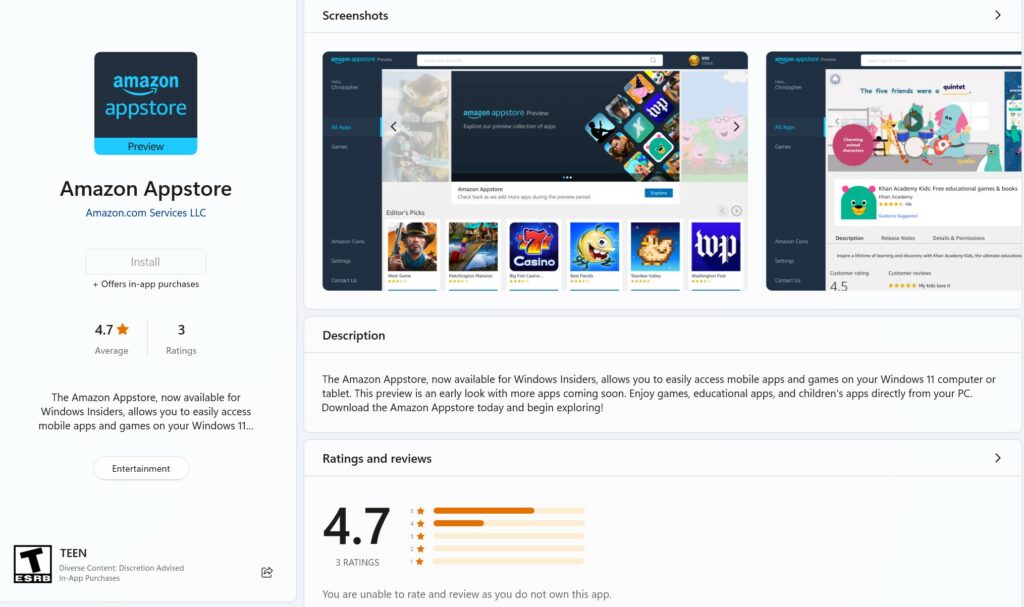
Further, wait for the download to finish. Once done, click on theRestartbutton to restart your PC.
Then, open the Amazon Appstore from the Start Menu and log in with your U.S. Amazon account.
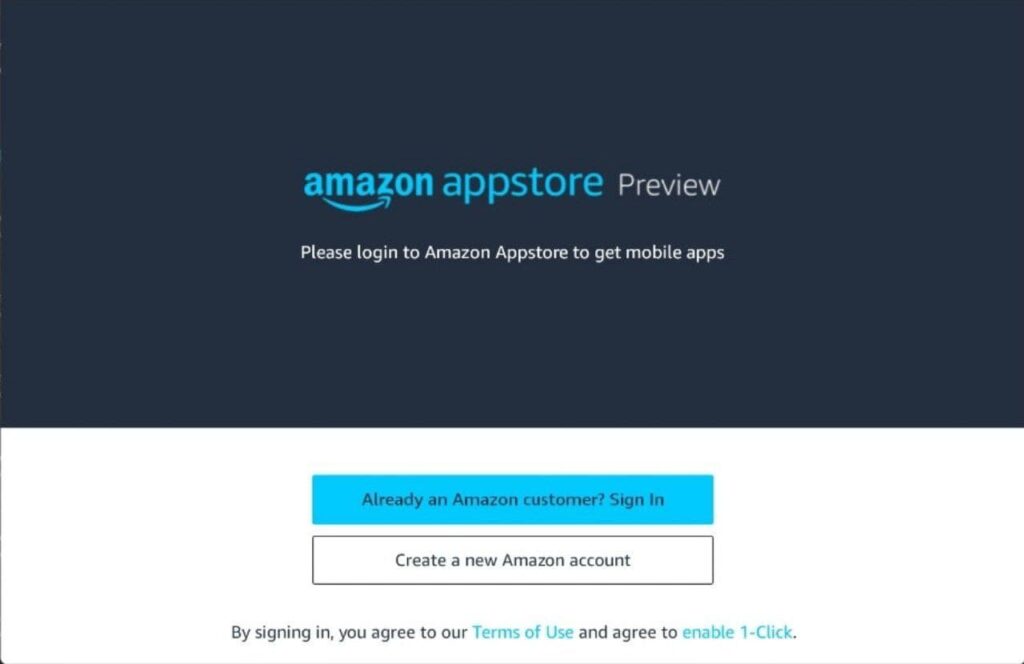
- Finally, pick your preferred Android app and click on theInstallbutton to install the specified app on your PC.
This concludes the process of setting up and installing Android apps on your PC. you may launch these apps directly from the Start Menu and pin them on the Taskbar, like regular Windows apps.

Alternatively, you can skip using the Amazon Appstore and sideload Android app packages using ADBs. Would you install and run Android apps on Windows 11? Let us know in the comments below.
