Are you struggling to get a good night’s sleep because of constant phone alerts? Sleep Mode on your iPhone can help you relax by reducing distractions and creating a peaceful bedtime routine. You canadjust this featureto fit your schedule, allowing you to relax and wake refreshed at night. Thisguidewill help you with simple steps to use sleep mode on your iPhone.
What Is the Use of Sleep Mode on Your iPhone?
Sleep Mode on your iPhone reduces distractions at night by silencing notifications and adjusting your phone’s settings to help you sleep better. Other features of the mode include:
How to Turn On Sleep Mode on Your iPhone?
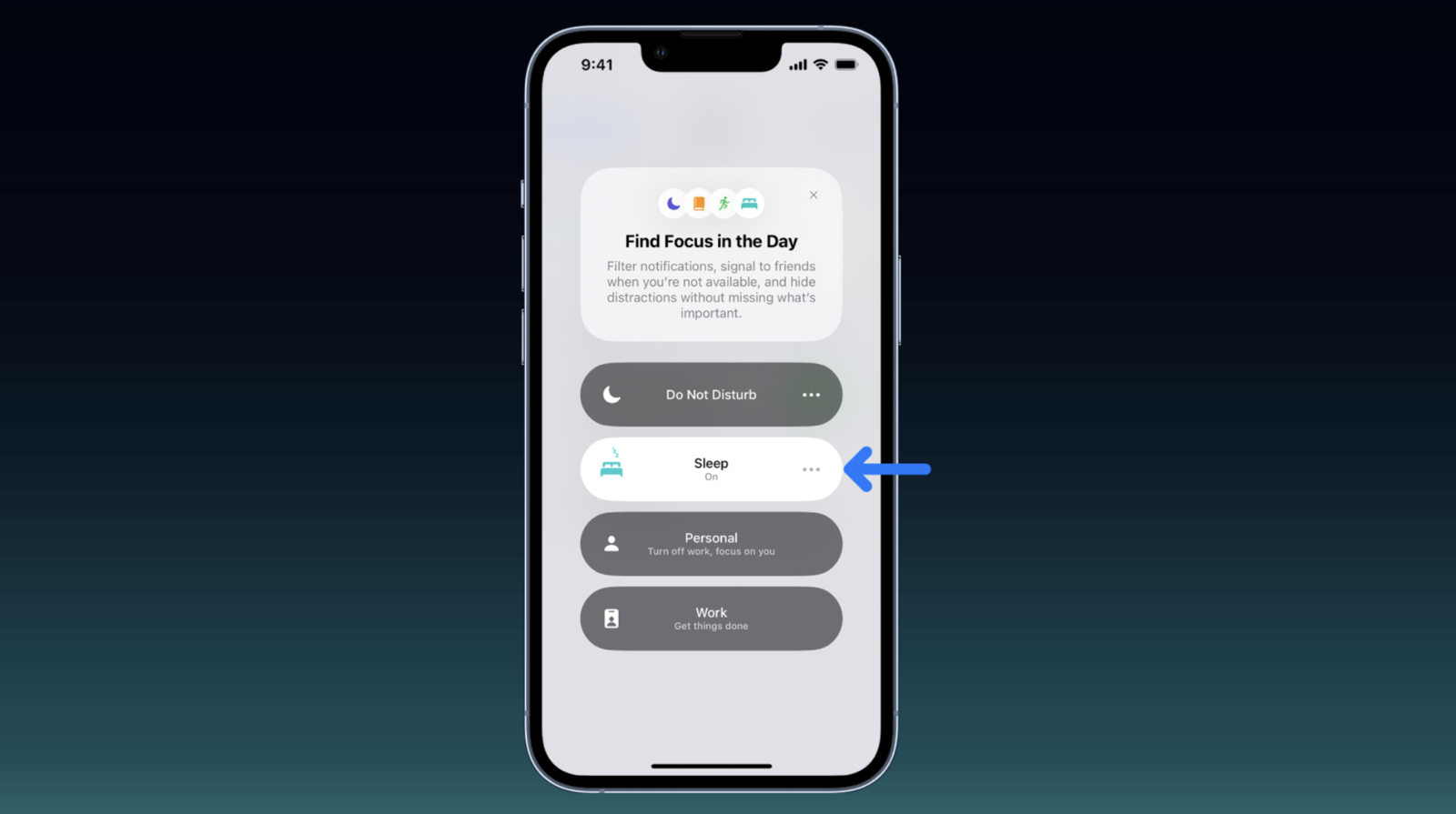
You can turn on Sleep Mode through the Control Center or the Health app, and this article covers both.
1. Using Control Center
2. Using the Health App
How to Turn Off Sleep Mode on Your iPhone?
To turn off Sleep Focus on your iPhone using the Control Center, swipe down from the top-right corner of your screen (or swipe up on older models) to open it. Tap the Focus icon, and then select Sleep to turn it off. This instantly disables Sleep Focus, allowing regular notifications and settings.
Alternatively, you may set up a sleep schedule in the Health app, automatically activating Sleep Mode based on the times you choose to sleep and wake. However, if you prefer to turn it off manually, you must go to the Focus settings in the Settings app. Here, you can either disable Sleep Mode or adjust the times it activates, ensuring it’s set according to your preferences.
More Reads


